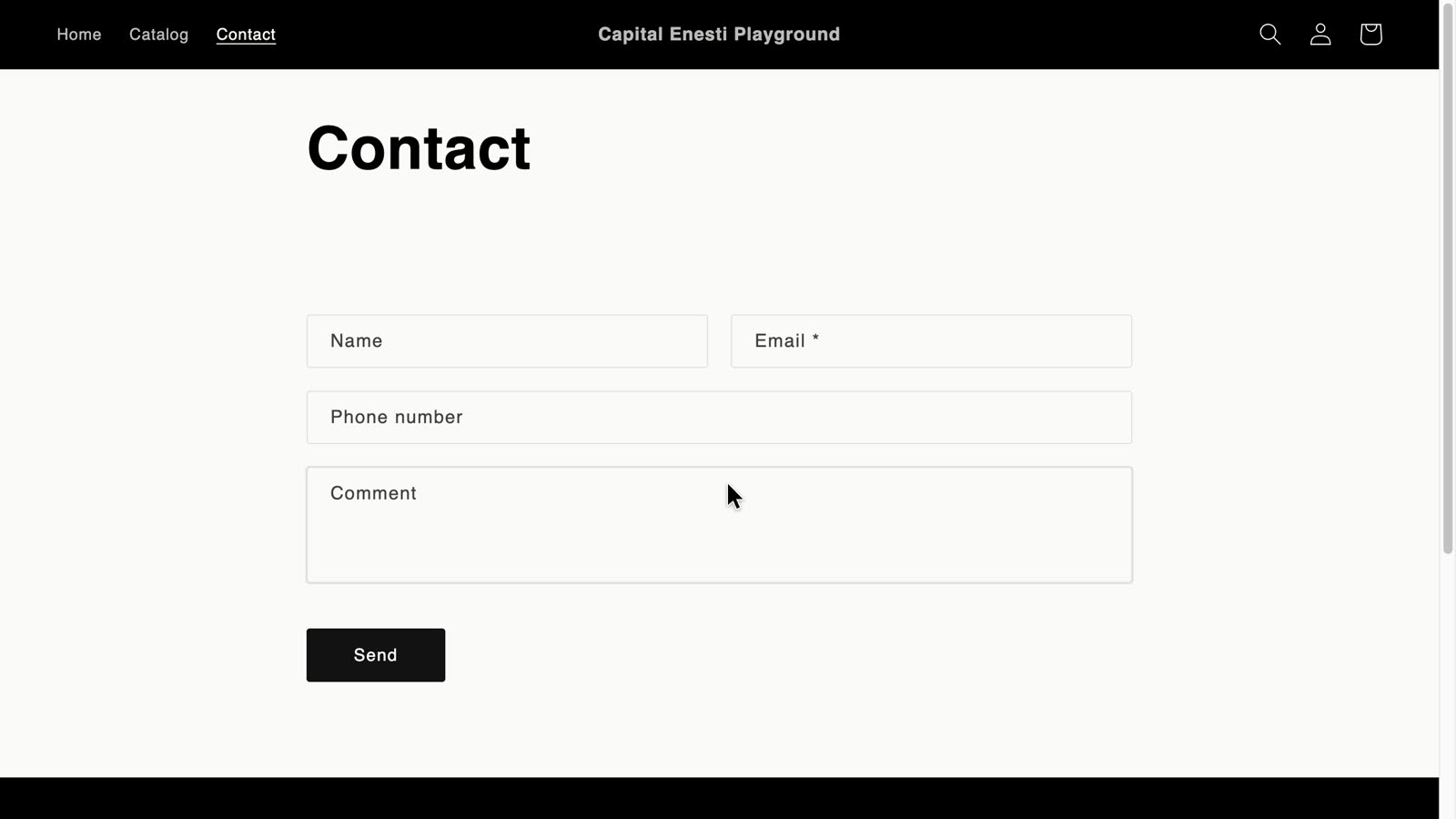
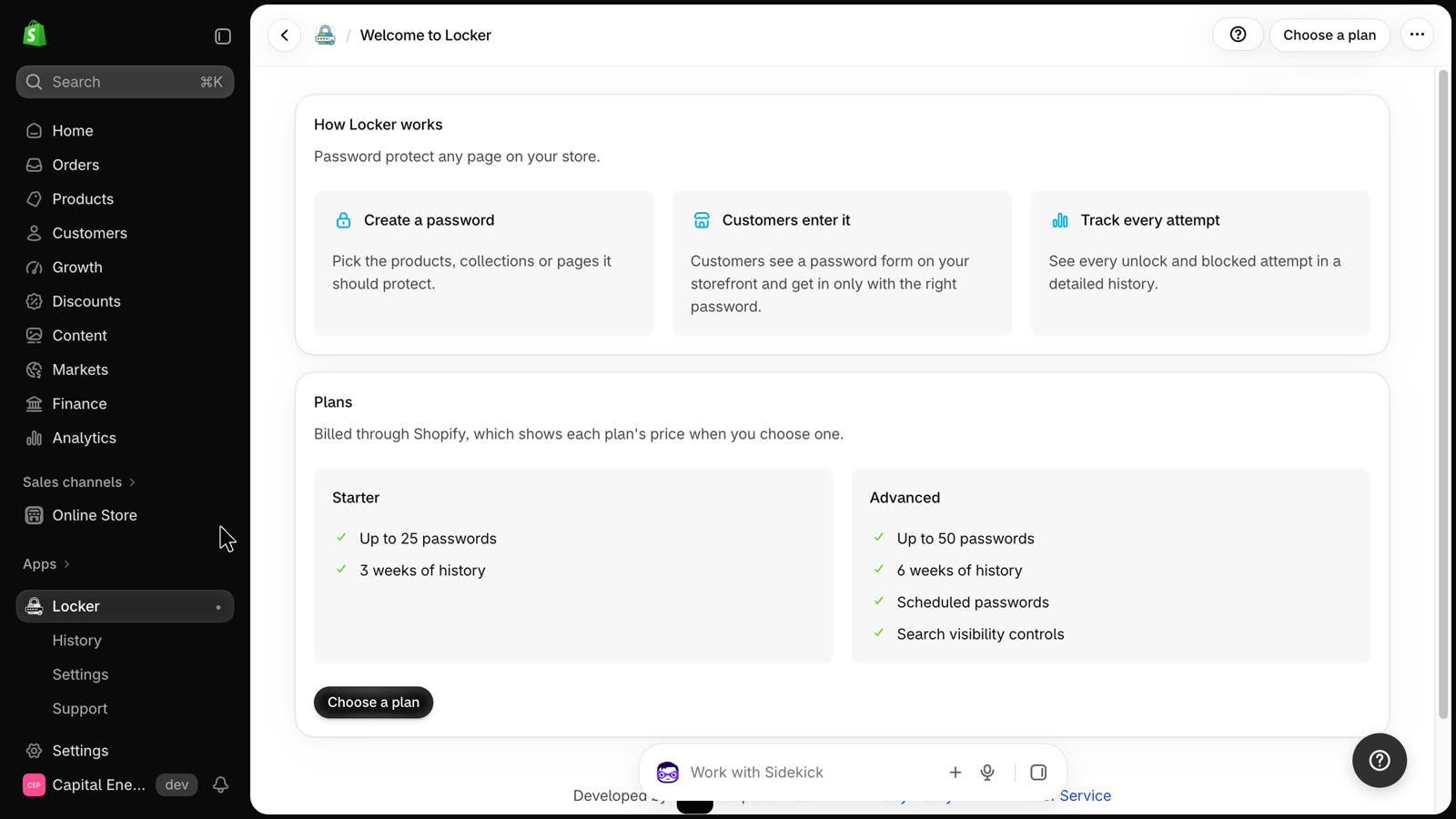
Password protect a page on Shopify
Put a password on a single page of your Shopify store, such as a members page, a price list or a lookbook, without locking the whole store. This tutorial uses Locker: switch on its theme embed, create a password, add the page's path, and see what shoppers get.
Install Locker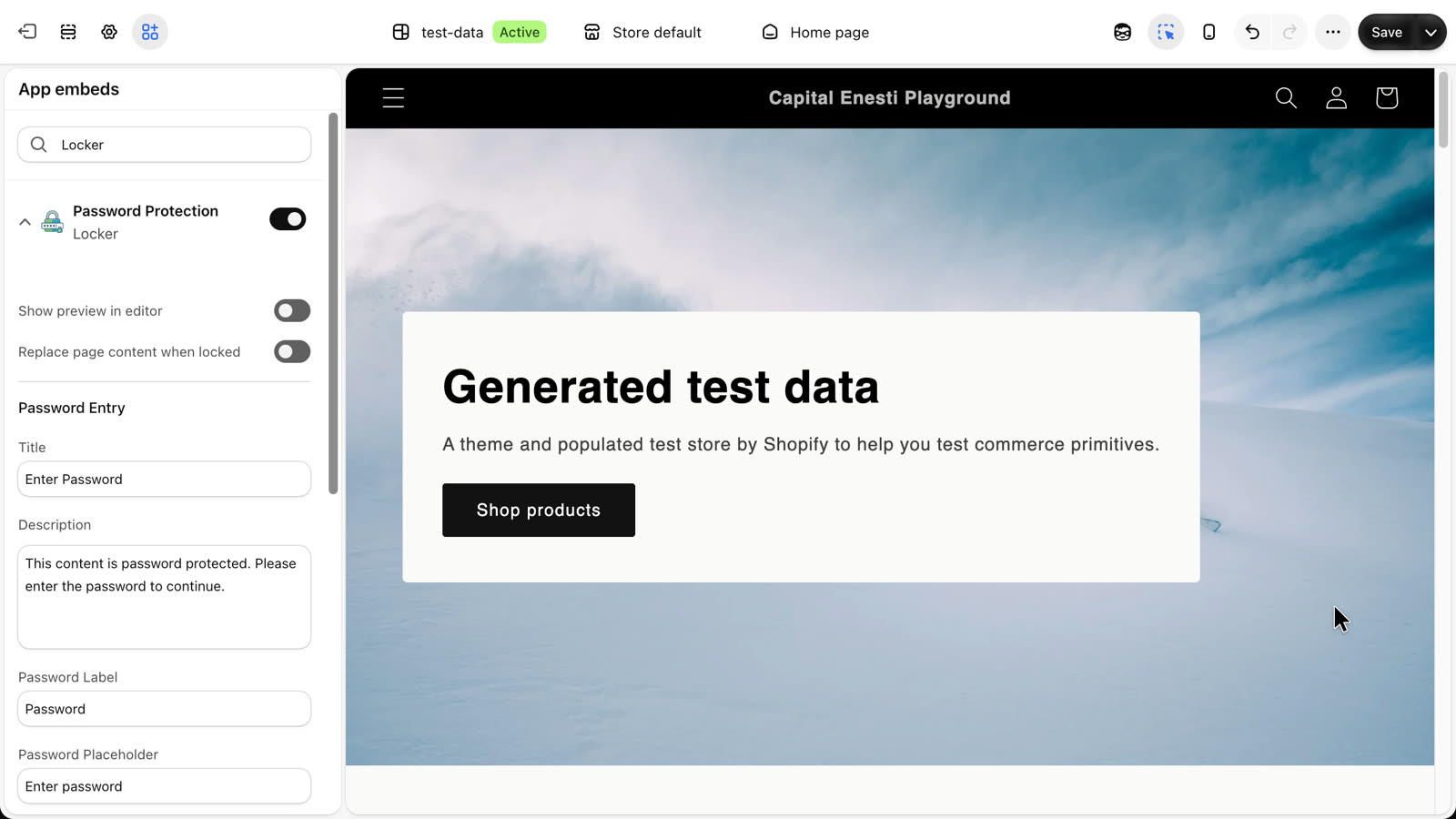
- 1
Open the app embed
Locker shows its password form through a theme app embed, so nothing is pasted into your theme code. On Locker's home page, the setup guide starts with it: click Enable next to Enable app embed in theme.
- 2
Save the theme
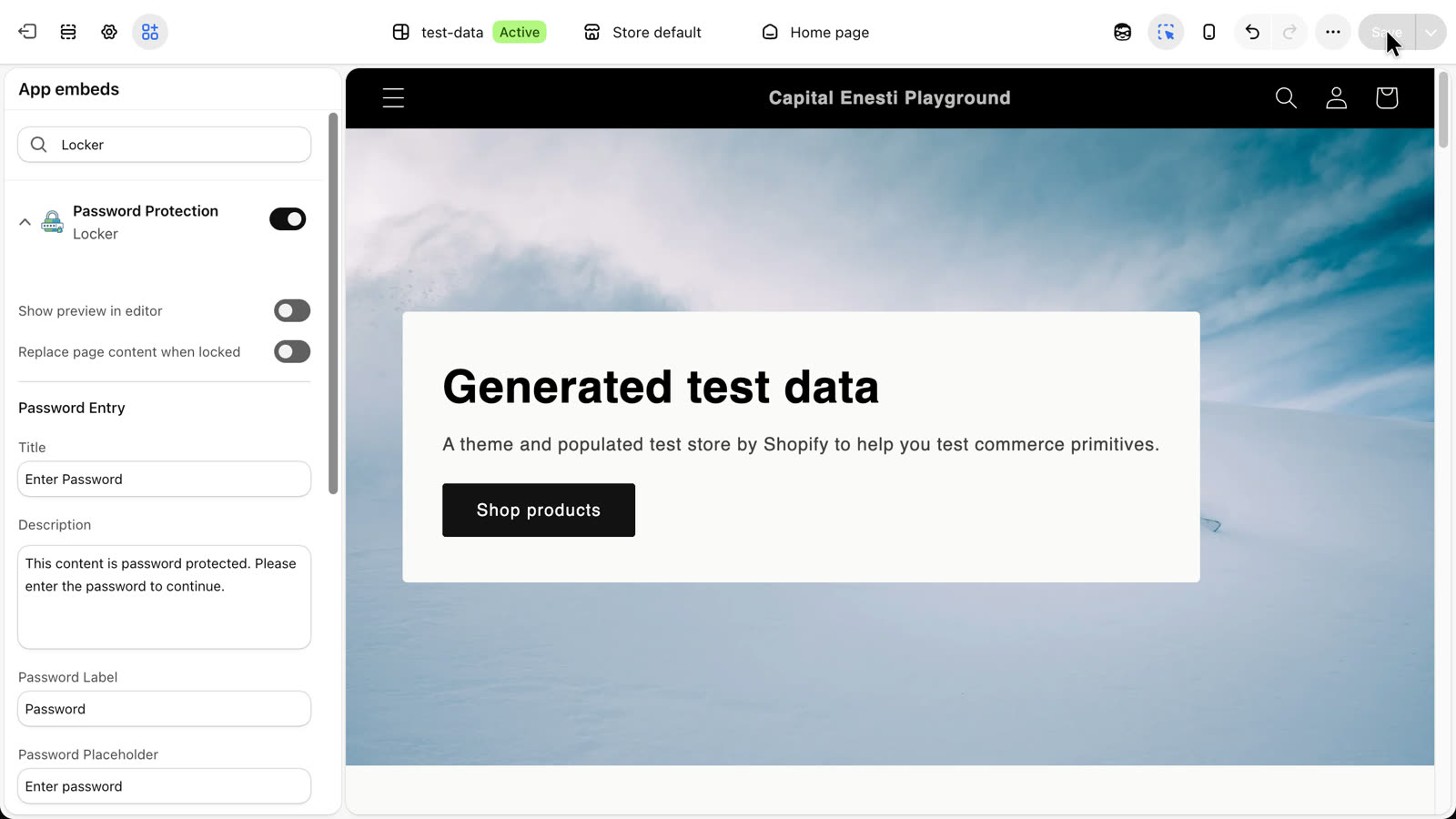
Shopify opens your theme editor on App embeds, with Locker's Password Protection embed already switched on. Click Save in the top right corner. The same panel lets you change the texts and colors of the password form later.
- 3
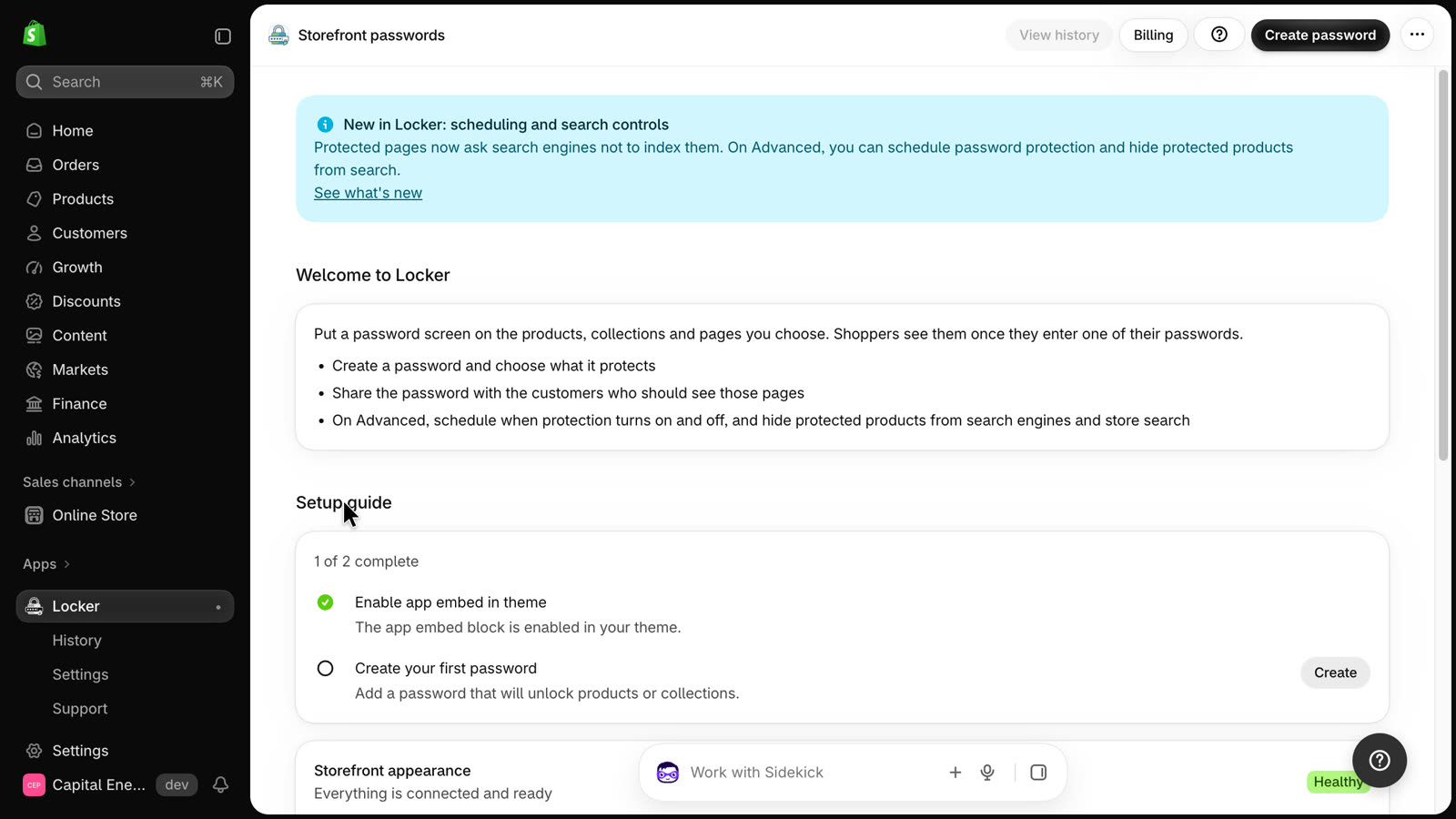
Check the setup guide
Go back to Locker. The setup guide now shows the app embed as done, and the Storefront appearance card reads Enabled.
- 4
Create a password
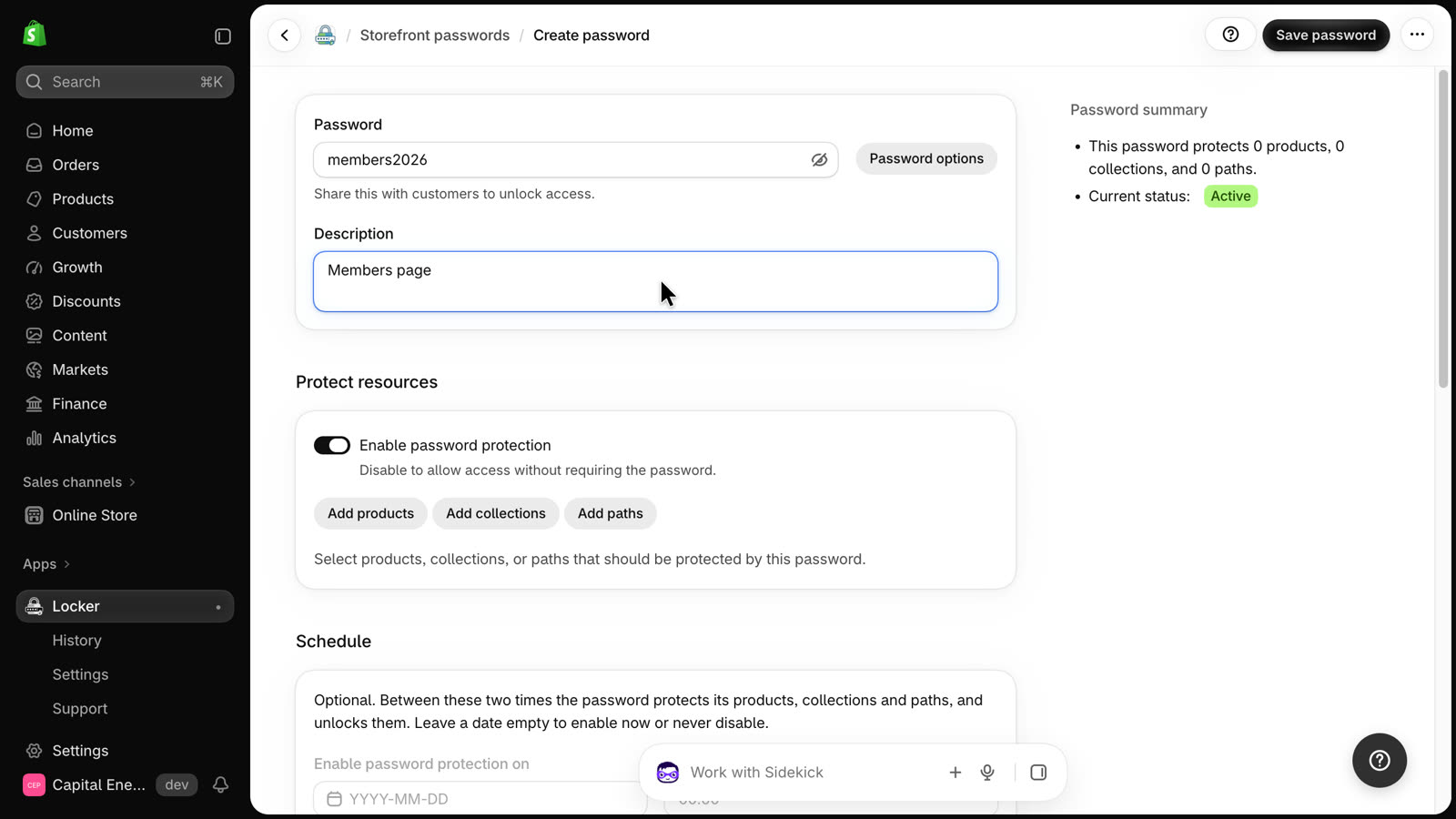
In Locker, click Create password. Type the password your customers will use to get in. The description is a note for you; customers never see it.
- 5
Add the page's path
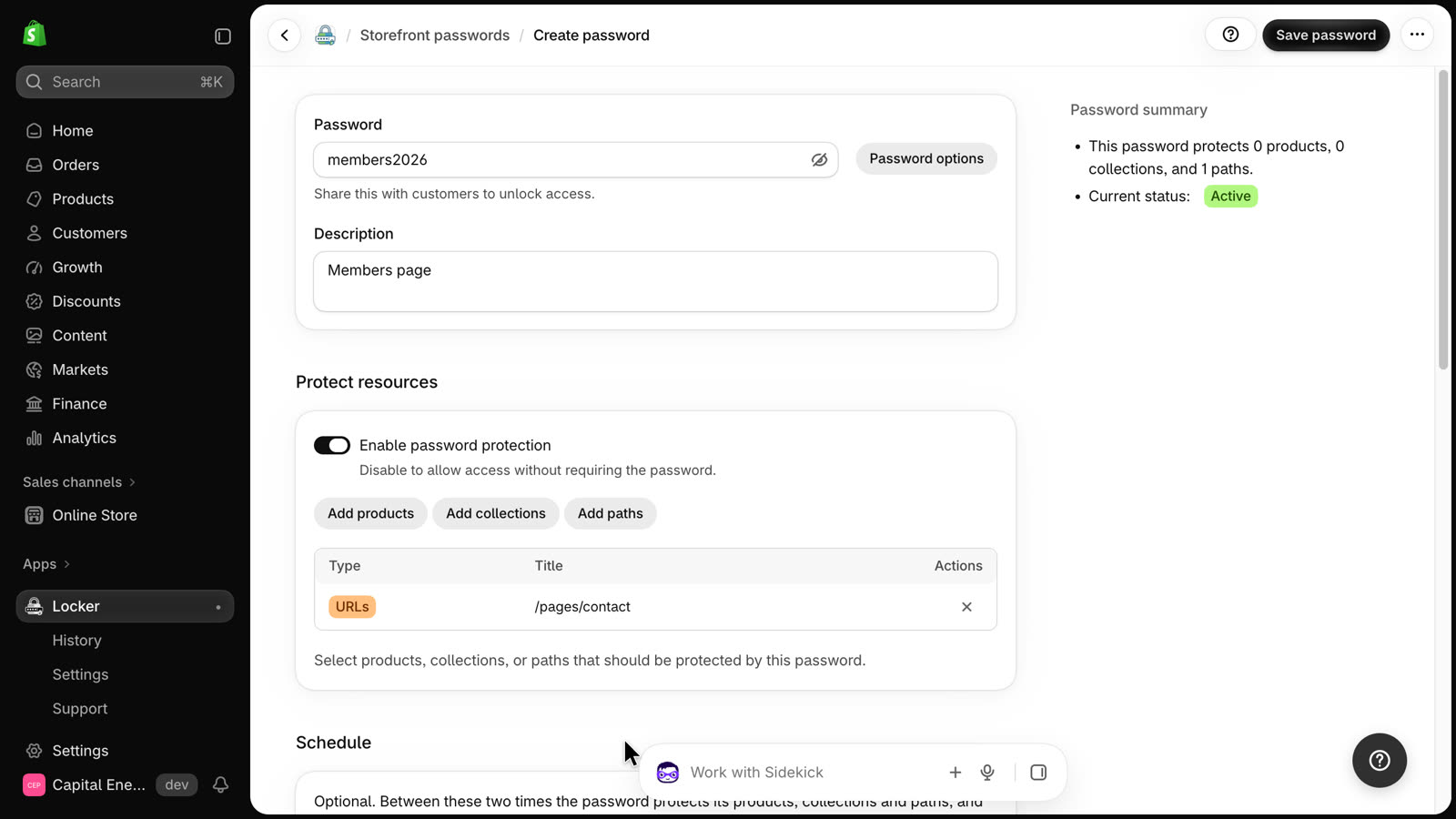
Under Protect resources, click Add paths. Paste the page's full address or just its path, for example /pages/contact, and click Add path. Locker keeps only the path. This works for any storefront address, not only pages.
- 6
Save the password
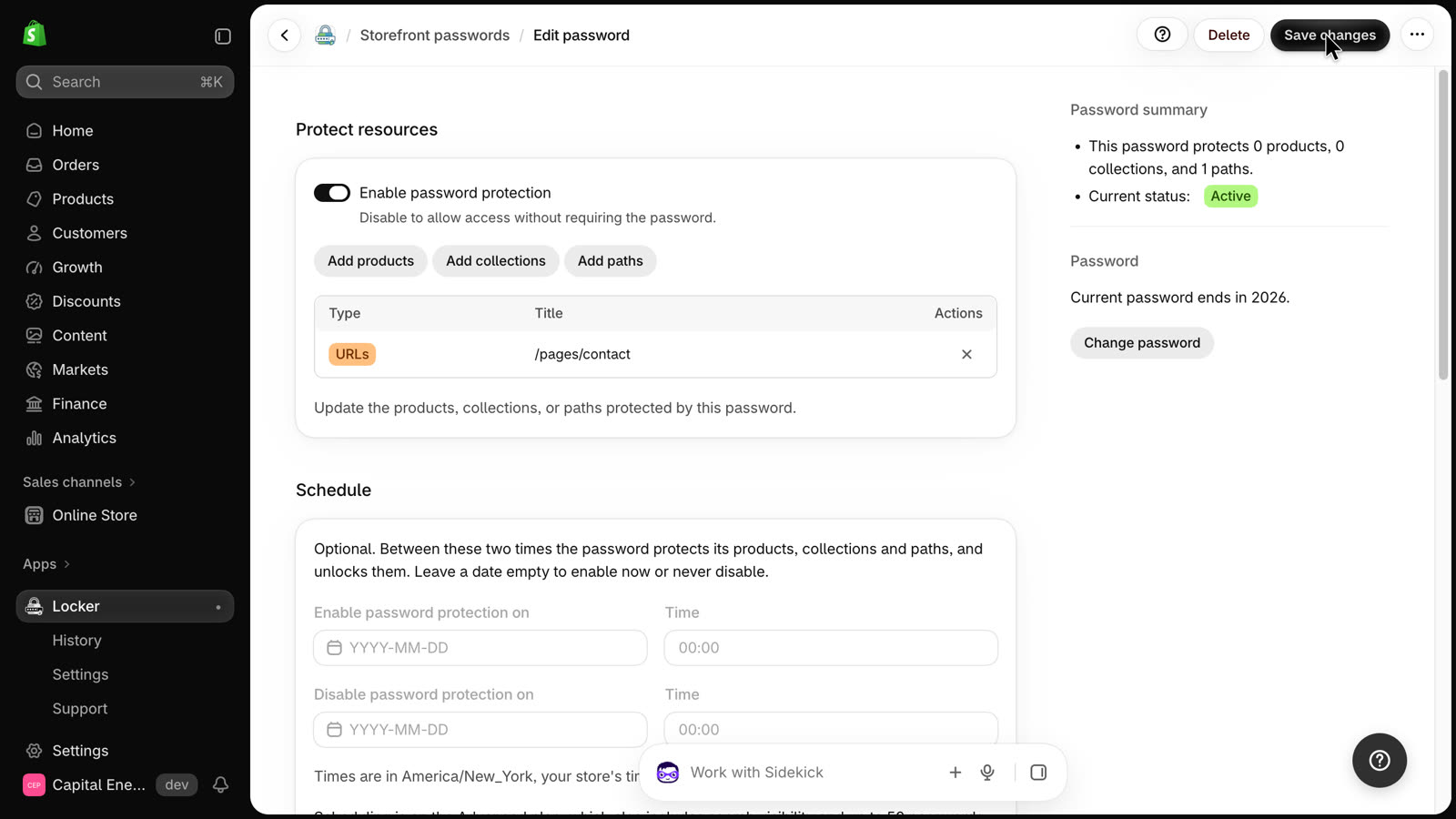
Click Save password in the top right corner. The page is now locked on your storefront.
- 7
What shoppers see
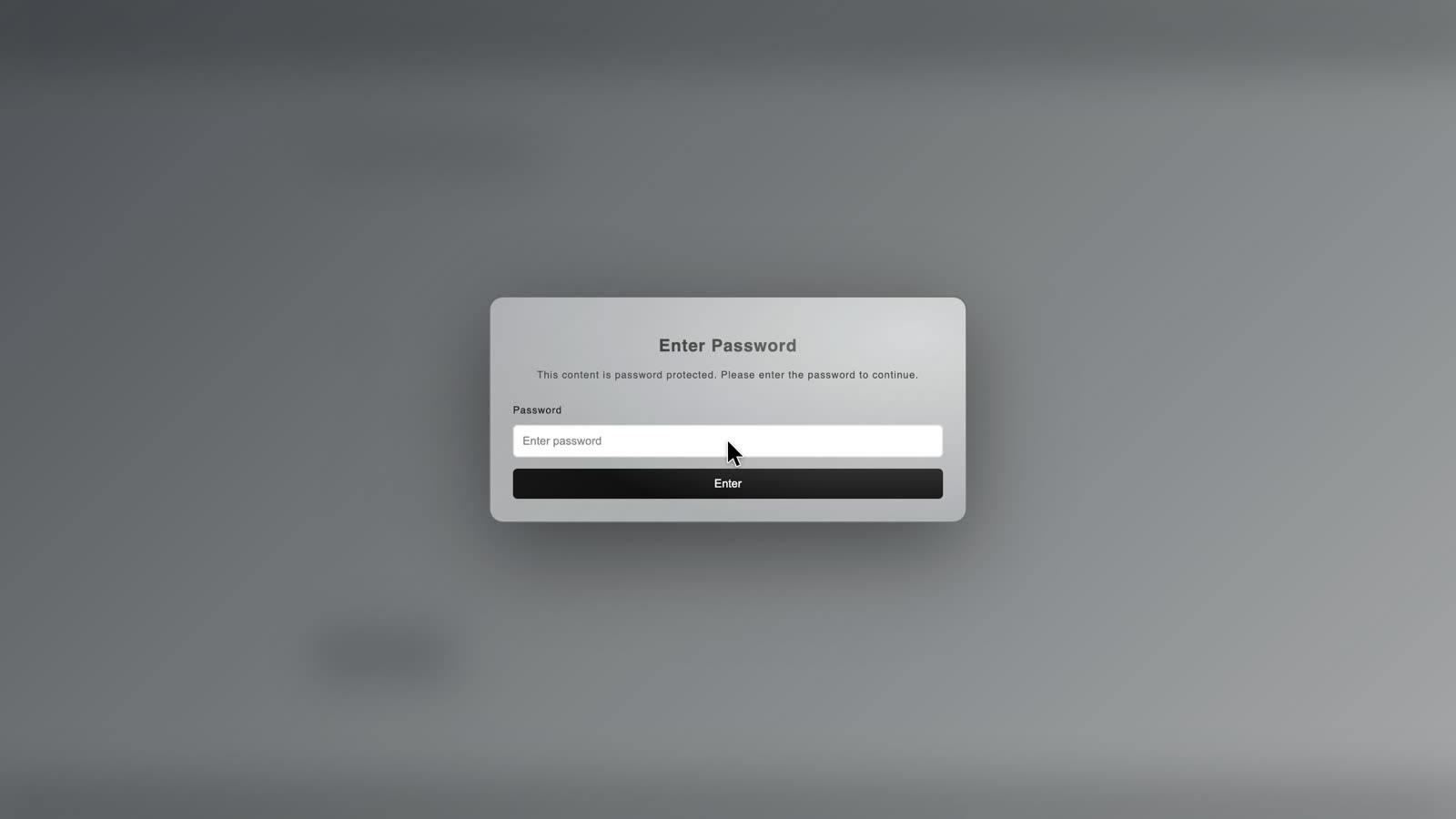
On your storefront, open the protected page. Shoppers get a password form instead of the page. The rest of the store stays open.
- 8
The password opens the page
With the right password the form disappears and the page opens as usual.