Turn Locker's password protection on or off
Locker's password form runs through a theme app embed, and that embed is the master switch. This tutorial shows how to switch all protection off without losing your passwords, and how to switch it back on.
Install Locker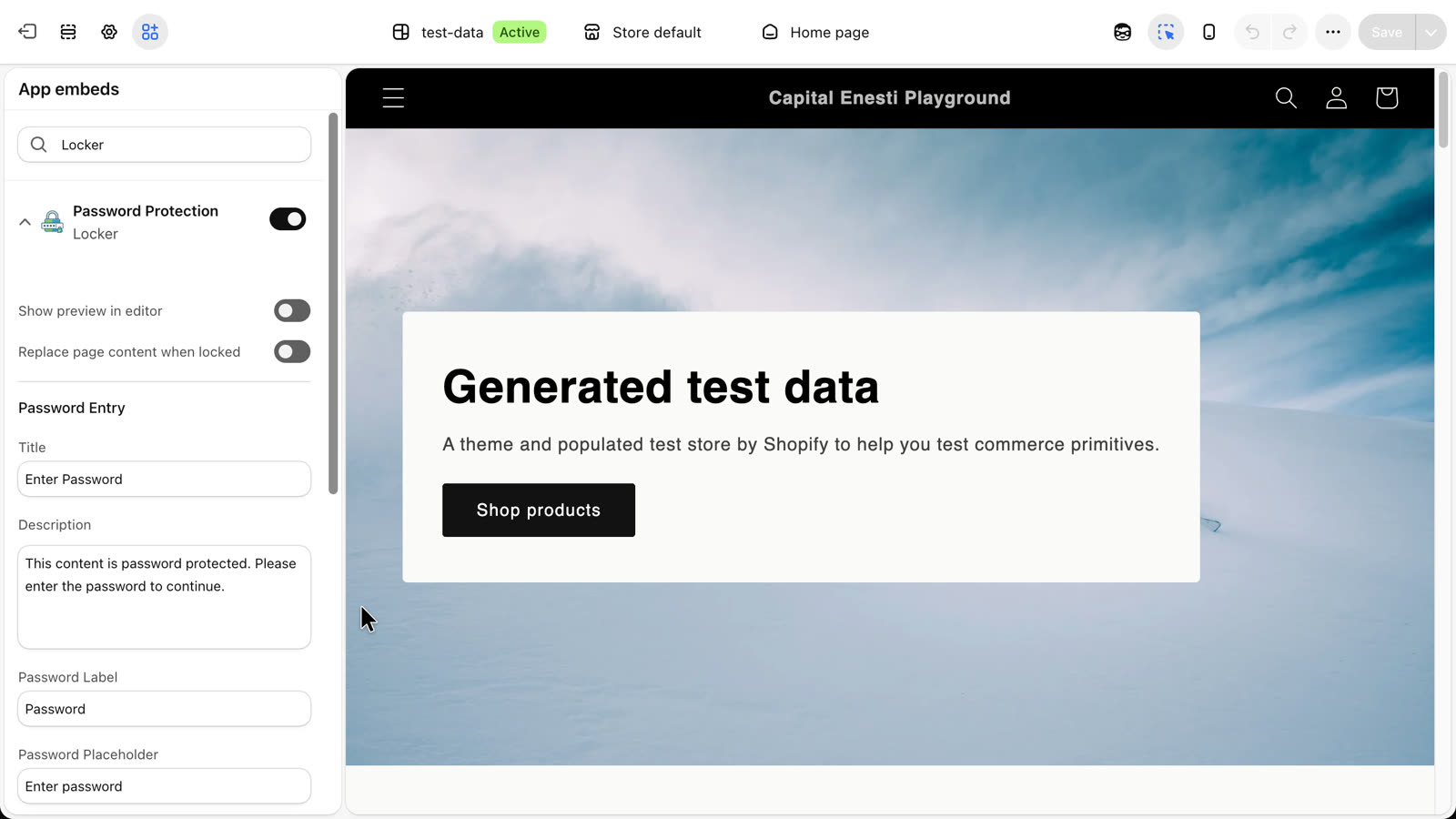
- 1
Open the app embed
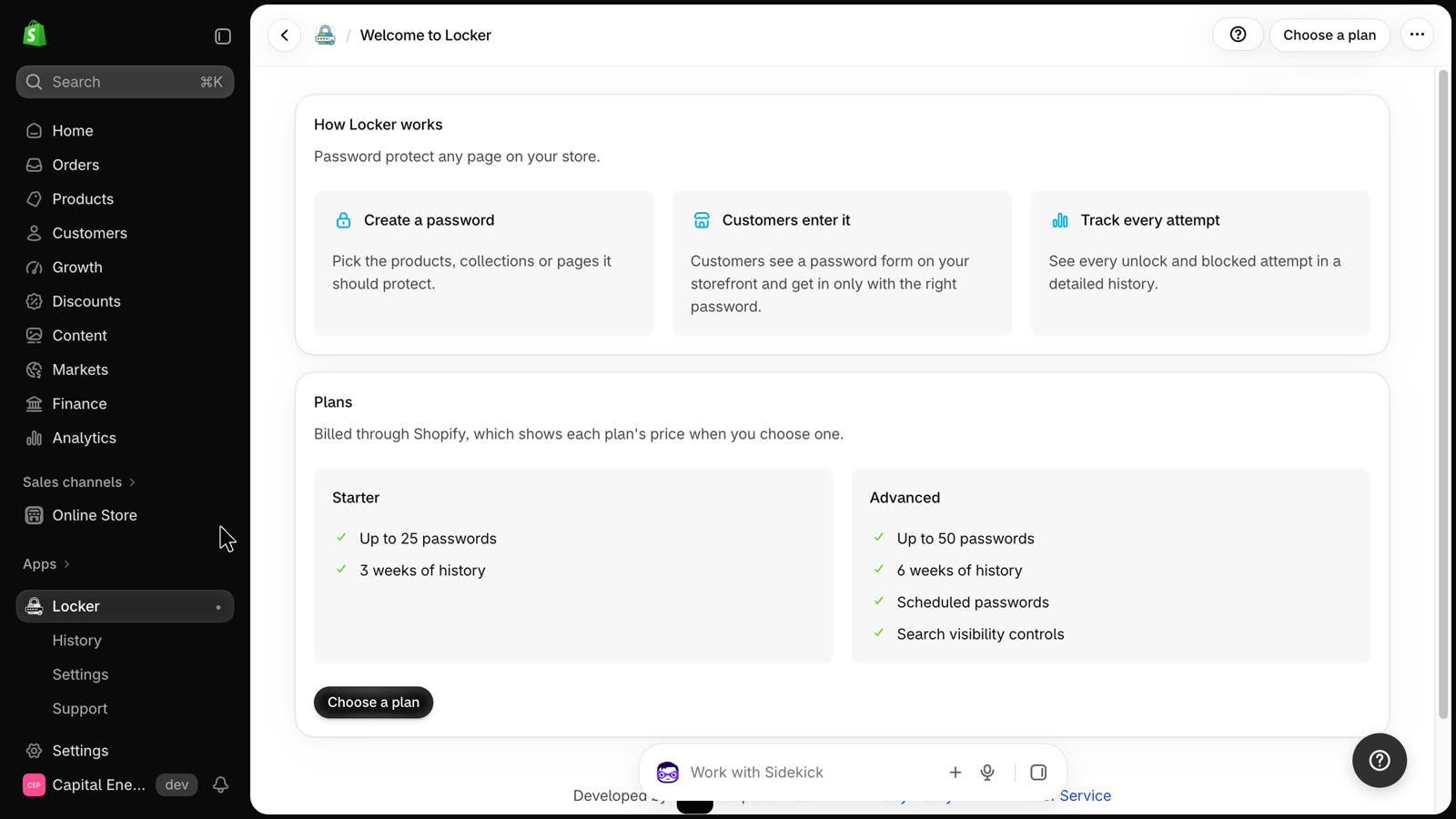
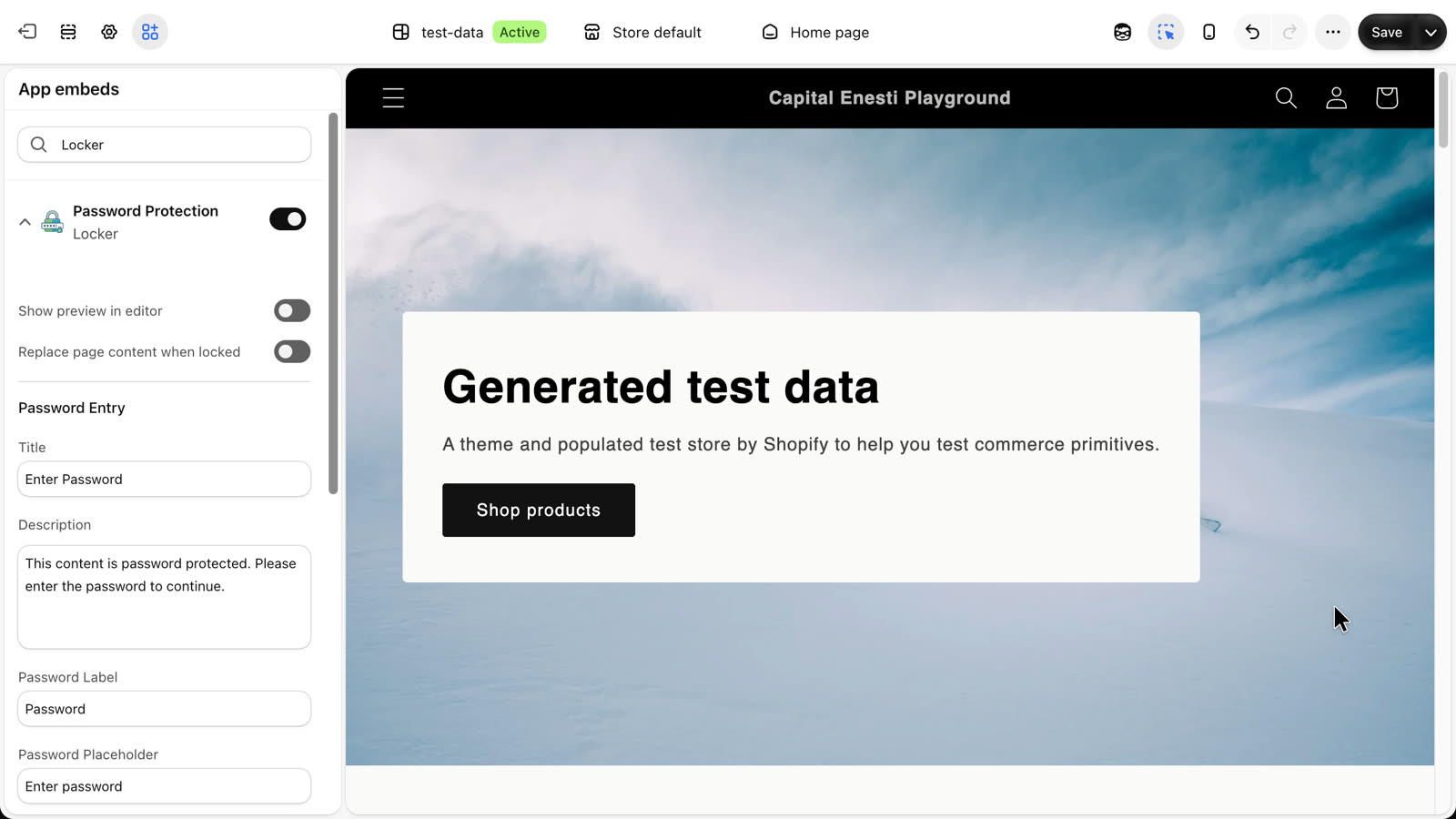
Locker shows its password form through a theme app embed, and that embed is the master switch for all protection. On Locker's home page, find the Storefront appearance card and click Customize. Shopify opens your theme editor on App embeds.
- 2
Switch protection off
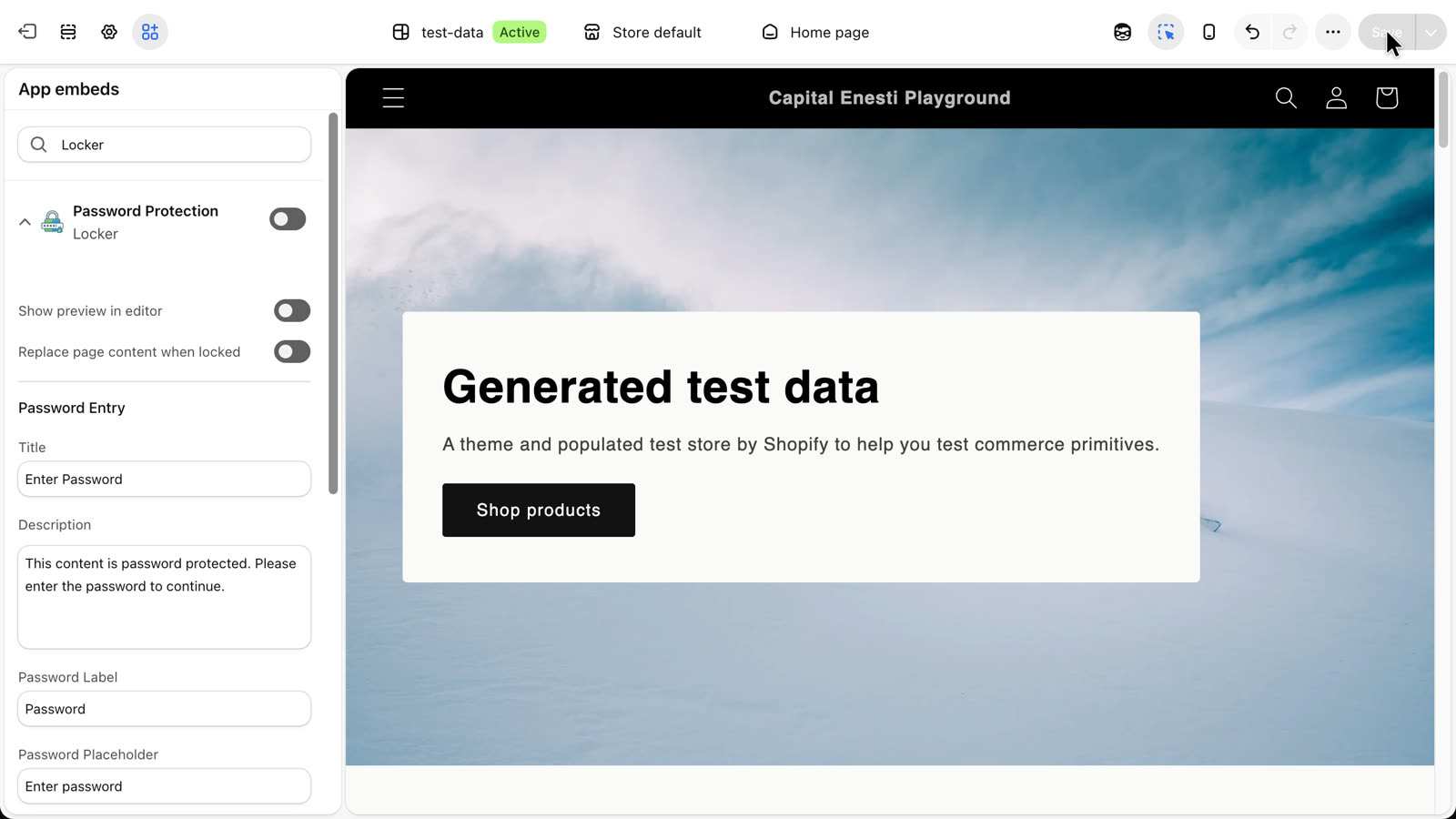
Switch the Password Protection embed off and click Save. Your passwords and everything they protect stay saved in Locker, but no page asks for a password while the embed is off.
- 3
Protected pages are open
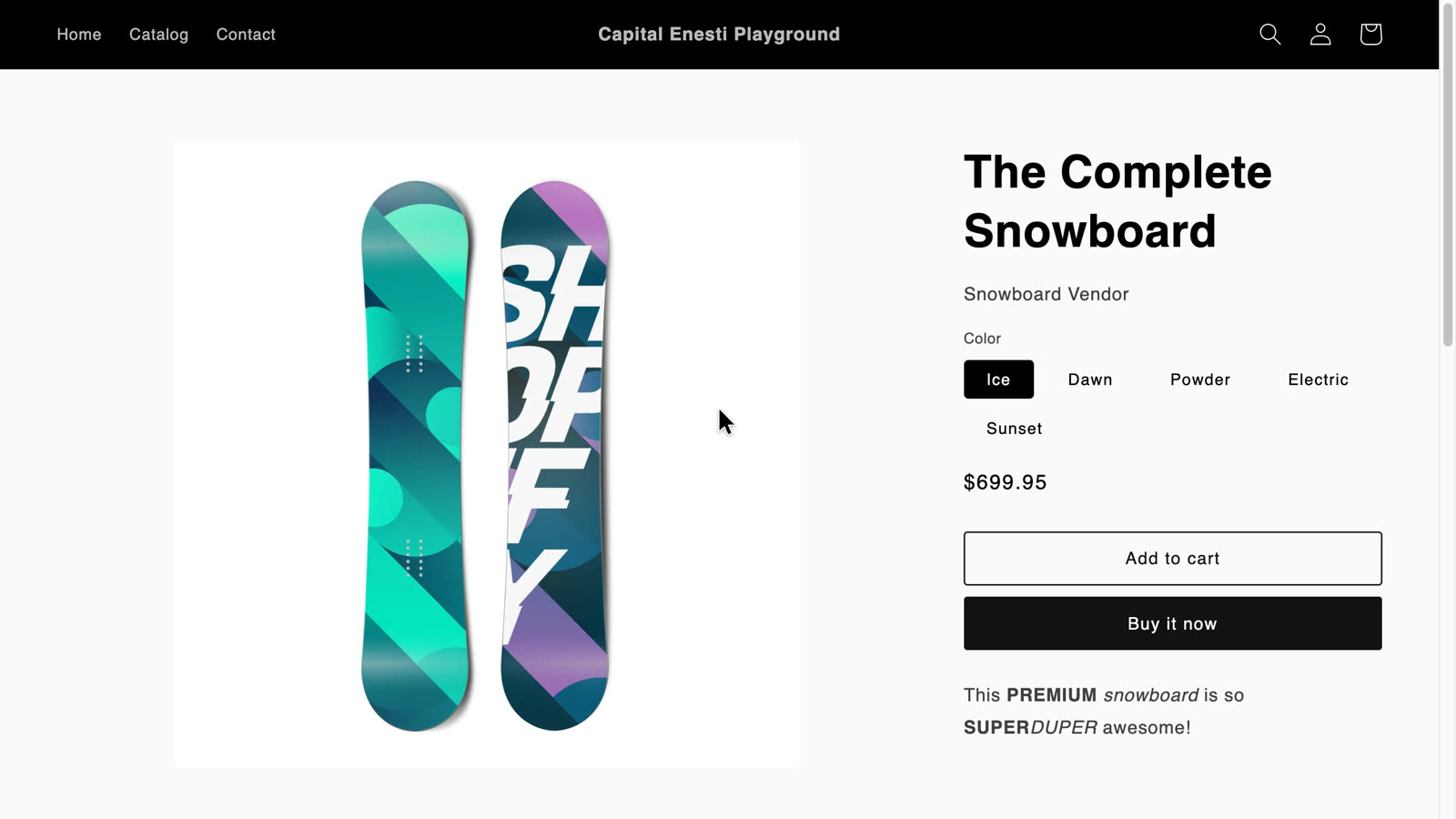
Check your storefront: a protected product now opens without a password, like any other page.
- 4
Switch protection back on
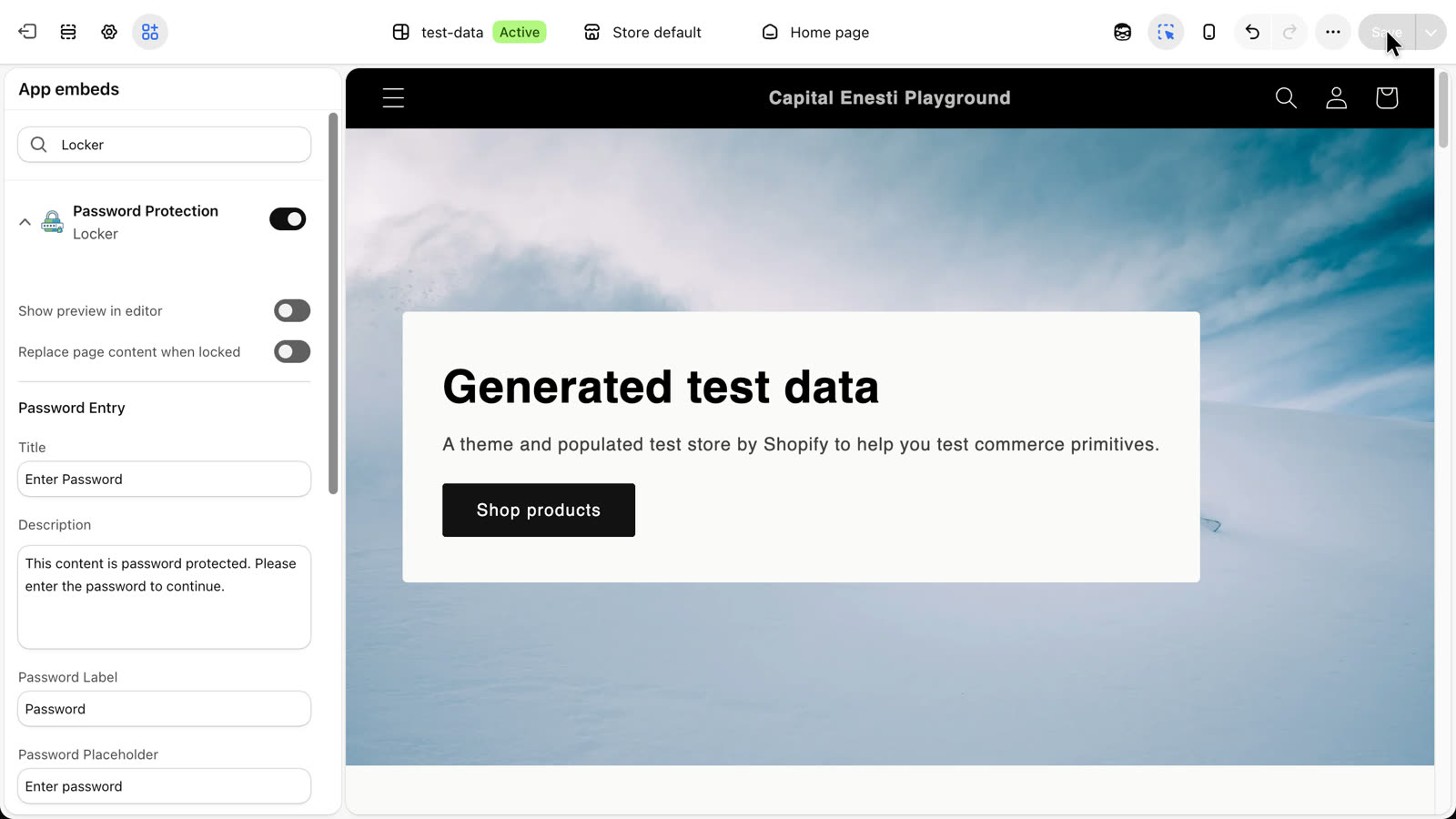
To protect your pages again, go back to Locker. The Storefront appearance card now reads Disabled: click its button to open the theme editor with the Password Protection embed switched on, then click Save.
- 5
Pages are locked again
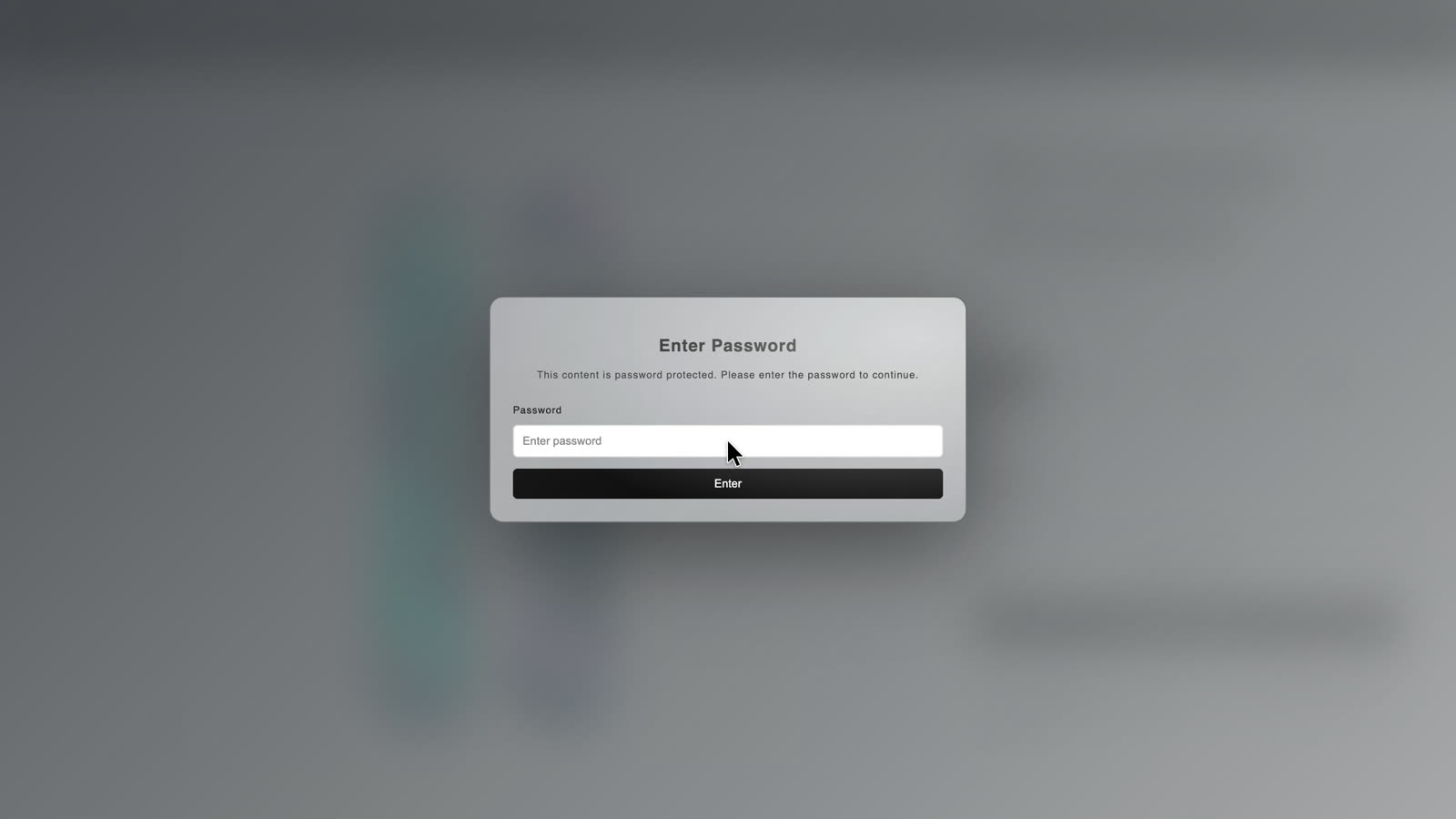
Back on your storefront, the protected product asks for its password again. Nothing else had to be set up: every password and everything it protects was kept.